

Download
StepBridge is available for Windows, Mac, iPad, and as a web version. Choose your platform below for installation instructions.
Download StepBridge
Download the installer for Windows.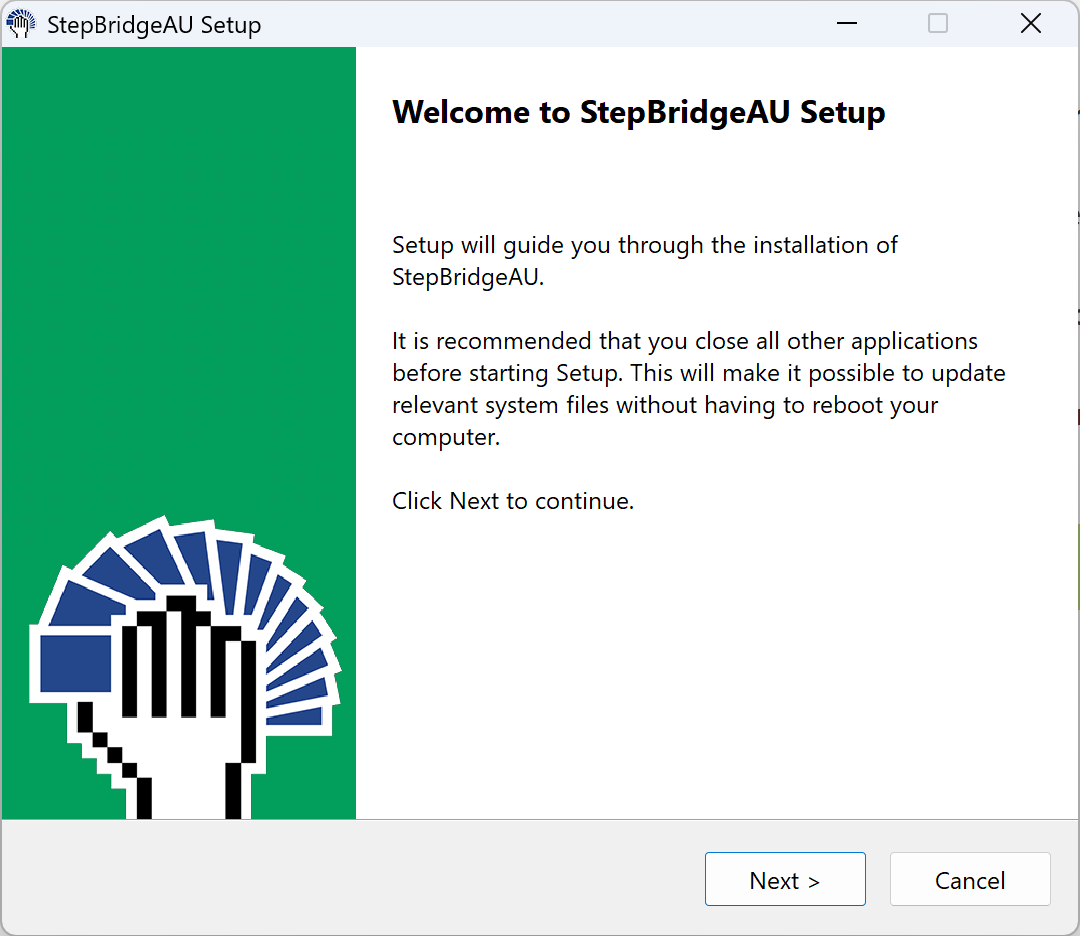
Run the installer
After downloading, you can start the installation by double-clicking the downloaded installer. You can do this directly from your browser (via the icon with a downward arrow), but also afterwards by going to the Downloads folder on your PC in Windows Explorer.
Click Next to start the installation. The installation will be executed immediately. When the installation is complete, click Finish.
Start StepBridge
In the previous step, you installed StepBridge on your PC. After installation, you can find StepBridge in your start menu and as an icon on your desktop. You can also search for StepBridge in the Windows Taskbar.
Double-click the StepBridge icon to start the program. StepBridge will open and you can log in.
Continue to the Quick Start Guide.
Download StepBridge
Download the installer for Apple macOS.By clicking the above link, the installer will be downloaded by your browser.
Wait for the download to complete.
Run the installer
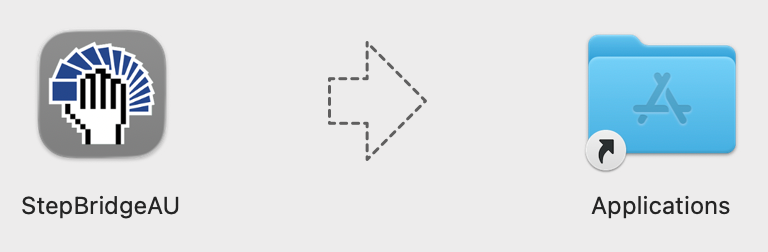
After downloading, start the installation by double-clicking the downloaded installer. You can do this directly from your browser (via the icon with a downward arrow), but also afterwards by going to the Downloads folder on your Mac in Finder.
On the window that opens, you'll see the StepBridge icon, an arrow, and the Applications folder. Drag the StepBridgeEN icon to Applications to complete the installation.
Start StepBridge
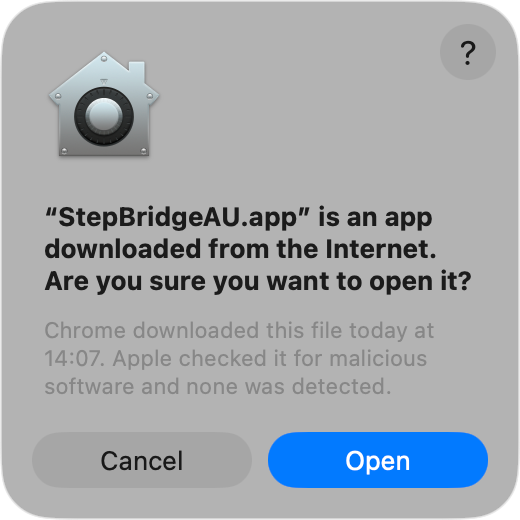
In the previous step, you installed StepBridge on your Mac. To start StepBridge, you only need to open the installed program. This can be done in several ways (for example via Finder), but the easiest way is:
- Press space to open Spotlight.
- Type "Step" in the search box.
- Double-click the StepBridgeEN app.
- You will see a window as shown here.
- Click Open.
- StepBridge will open and you can log in.
Continue to the Quick Start Guide.
Open Safari and go to the app
Open Safari on your iPad and go to play.stepbridge.com.au.You will now see the StepBridge login screen. You can choose to log in directly from Safari, but for the best experience we recommend adding StepBridge as an app to your home screen first.
Add StepBridge to your home screen
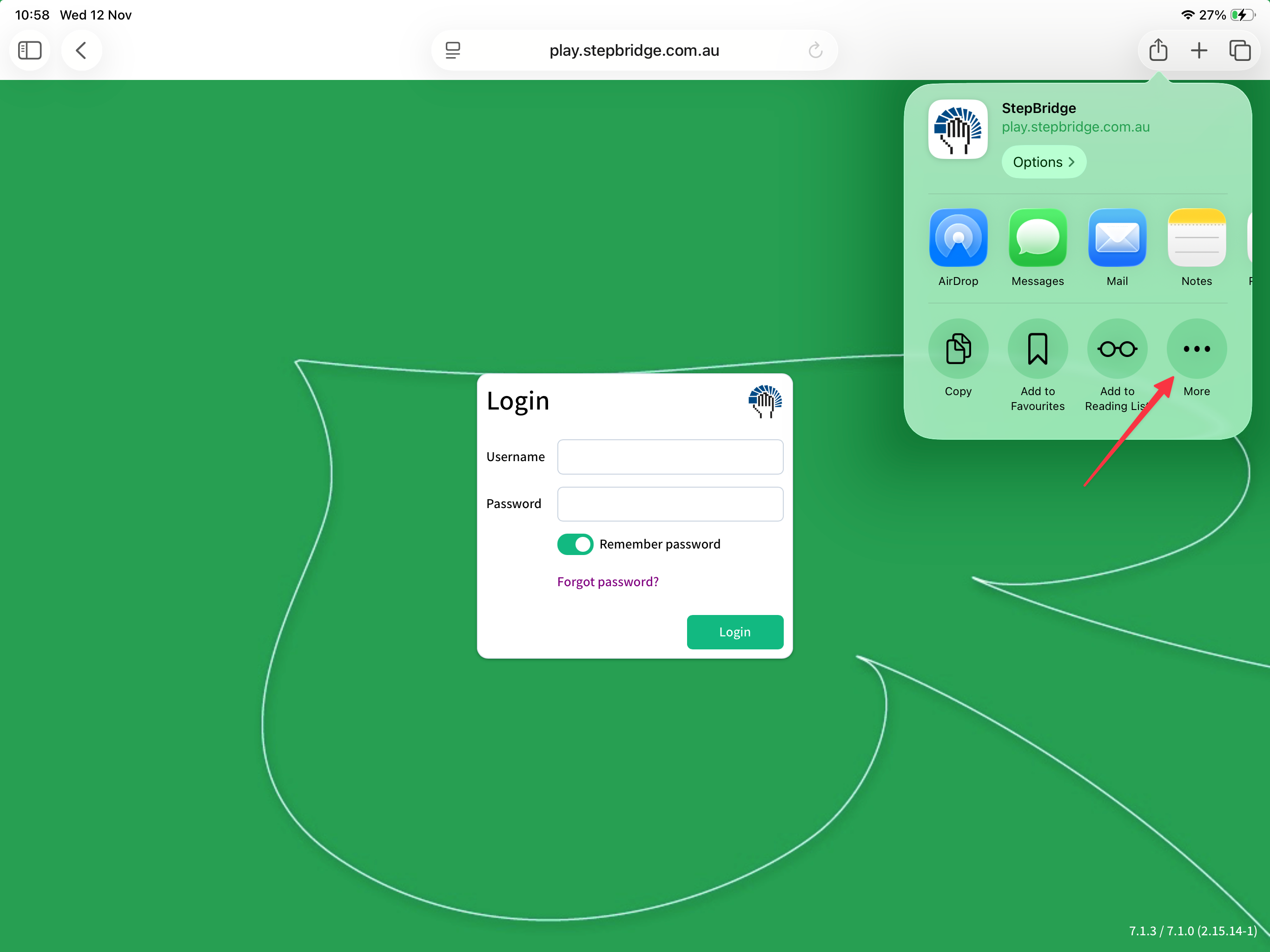
- Tap the share icon (square with upward arrow) in the address bar at the top.
- Scroll down until you see Add to Home Screen.
- Don't see Add to Home Screen immediately? Then tap More (the three dots).
- Tap Add to Home Screen.
- Make sure Open as web app remains checked.
- Tap Add in the top right.
Start StepBridge
StepBridge is now on your home screen as an app icon. Tap it to open the app. You can now log in and play bridge.
Continue to the Quick Start Guide.
If you don't want to install software, or if you use a different operating system (such as Android, Linux, or a Chromebook), you can also use StepBridge in your web browser. StepBridge works in Chrome, Safari, and Edge, but any modern browser is suitable.
Open the web version
Go to play.stepbridge.com.au in your web browser.Log in
You can log in directly with your player name and password.
Continue to the Quick Start Guide.