

Quick Start Guide
This guide helps you get started with StepBridge — from your first login to playing your first boards.
First time logging in
Trial membership
You can sign up for a trial membership on this page. After signing up, you will receive your username and password by email within 24 hours.
Installation
You can play on StepBridge with almost any modern computer or tablet. StepBridge works on Windows, Mac, Linux, tablets, and in web browsers. Go to the download and installation instructions for your device.
Logging in
After starting StepBridge, the Log in window appears.
Enter the username and password you received by email. If you're playing on your own device, you can leave the Remember password slider on. Then click Log in. You will then see this message:
You have successfully logged in to StepBridge.
You have entered the Competition activity.
First time playing
StepBridge offers a wide range of games, such as the ongoing competition and daily tournaments. A pleasant way to get familiar with StepBridge is by taking a seat at a recreational table with our bridge robot Sabi.

By playing your first boards with Sabi, you can take your time and don't have to worry about making mistakes. The boards you play with Sabi don't count towards any results, so you can practise freely and get used to operating StepBridge.
Playing with Sabi
Follow these steps to play your first boards with Sabi:
- Start a Sabi table – After logging in, you'll see a panel titled Tables on the main screen. Click the left button Start Sabi / recreational table.
- Confirm the settings – A window opens with several options. Leave everything at the default values and click OK.
- Play with Sabi – You are now sitting South at the table you opened. Click Play with Sabi to begin.
- Choose a convention card – Choose SAMPLE CARD - SAYC (more cards will be available in the future) and click Start Sabi.
- Start playing – The first board starts automatically. Your bidding box appears when it's your turn. After each board, you can choose whether to stop or continue playing.
What's different?
Playing with Sabi is very similar to playing with human opponents, but there are a few differences:
- Playing dummy
If you play with Sabi as partner and Sabi becomes declarer, you play the hand as dummy. - Alerting
At a Sabi table, you don't need to alert; Sabi does this automatically and shows the explanation of your bid. - Undoing
You can undo actions as often as you like. Normally, this is only possible with opponents' permission. - Claims
Sabi accepts every claim, even if it's incorrect. Normally, opponents decide whether to accept a claim.
Although playing with Sabi differs slightly from playing with human opponents, StepBridge works the same otherwise. This lets you familiarise yourself with the program at your own pace.
Sending messages
When playing with Sabi, sending messages isn't important yet. But as soon as you start playing against people, it's useful to know how it works. Although Sabi doesn't respond much, you can practise using the message function.
Try the following options:
- Message to everyone – Type "Hi" in the message bar and press Enter or click the paper airplane. You'll see the message with timestamp and username in the chat window.
- Message to spectators – Type "Hi" again, click the arrow after Table, choose Spectators, and click the airplane. The message is sent only to spectators.
- Private message to your right-hand opponent – Repeat the previous step but choose Right-hand opponent. The recipient will see that it's a private message.
- Message to opponents and spectators – Type "Hi" again and choose Opps + specs. This message is sent to opponents and spectators, but not to your partner.
Board results
After each board, the results window appears automatically. It opens in the Detail tab and contains three tabs:
- Detail: shows the play sequence at your table and the score achieved.
- Field: shows how other declarers played the same board. You can double-click a table to view the play sequence.
- Boards: provides an overview of all boards played in the session.
Playing pleasantly
When playing with Sabi goes well, it's time to play against other players. That can be exciting at first, but the most important thing is to contribute to a friendly and constructive atmosphere. That matters far more than perfect play or deep technical knowledge.
Some tips:
- Greet your fellow players when you come to the table. A friendly start sets the tone.
- Don't criticise your partner or opponents. Nobody plays better after comments, and excessive criticism isn't allowed.
- Use the chat politely. Avoid excessive punctuation or capital letters.
- Report if you need to stop unexpectedly. If you have to leave early due to an emergency, let your fellow players know and – in a tournament – inform the tournament director.
This way, you keep bridge enjoyable for yourself and others!
Convention card
Choosing a convention card is an important part of playing on StepBridge. When you start playing with a new partner, it's essential to agree on which convention card you'll use. This coordination mostly happens automatically on StepBridge, but it's good to know how it works.
StepBridge offers several standard convention cards. The most commonly used are Individual Tournament System Card and Standard American (SAYC). When your trial membership is activated, Standard American is already selected. If you're satisfied with that, you don't need to change anything.
You can easily choose a different standard card via the profile menu:
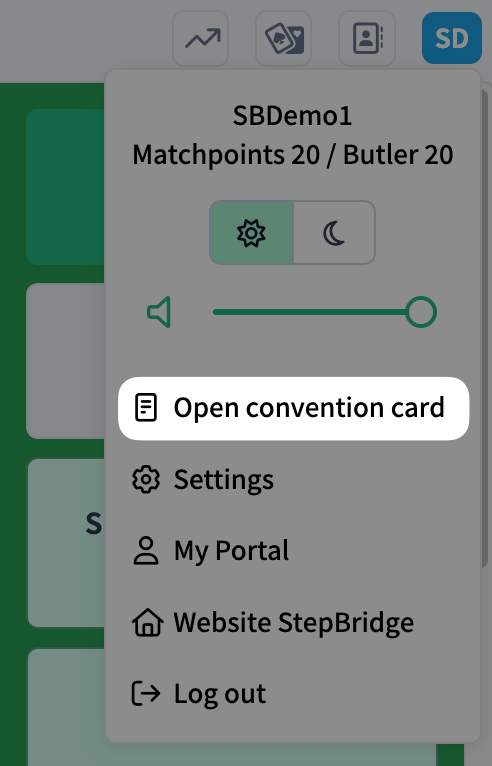
- Open the profile menu (the icon with your initials at the top right).
- Click Open convention card.
- Click Show convention cards.
- Select one of the standard cards.
- Click Choose.
- Close the window.
For casual partnerships, we recommend using a standard card to avoid misunderstandings. With a regular partner, you can also create your own card.
Playing tournaments
When you feel comfortable playing with Sabi, the next step is to join one of our tournaments. They are a great way to play real boards with other members in a supervised and friendly environment. Some tournaments are Individual events, where you play each round with a different partner — ideal if you don't have a regular partner or want to meet more players.
On the main screen, the right-hand column shows all tournaments that are currently running or starting soon. Click a tournament to open its information window. Here you can see the format, starting time, number of boards, and the available registration options.
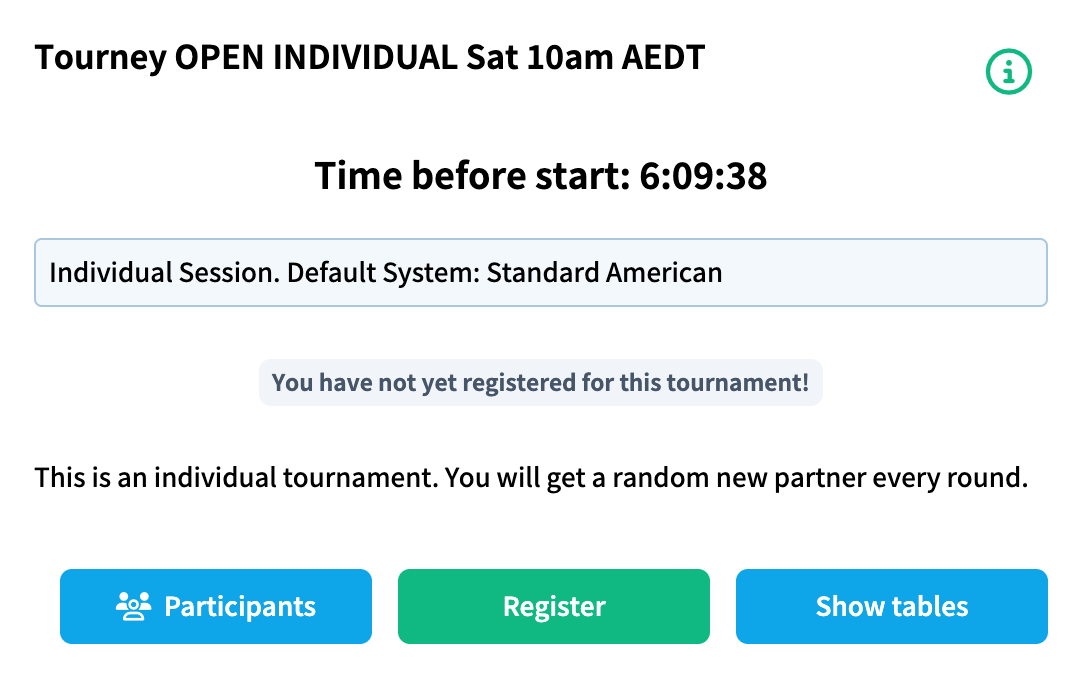
Most tournaments charge a fee in Participation Points. You can find more information on the Participation Points page.
Registering for a tournament:
- Click a tournament in the right-hand column of the main screen.
- Click the Register button.
- If you already have a partner, both of you register for the same tournament.
- If you need help finding a partner, email support — we are happy to assist.
- After registering, wait for the tournament to start. You will automatically be seated at a table.
Partnership information
During play, you can always see which pairs are regular partnerships and which were matched by StepBridge, as well as which convention card a partnership is using.
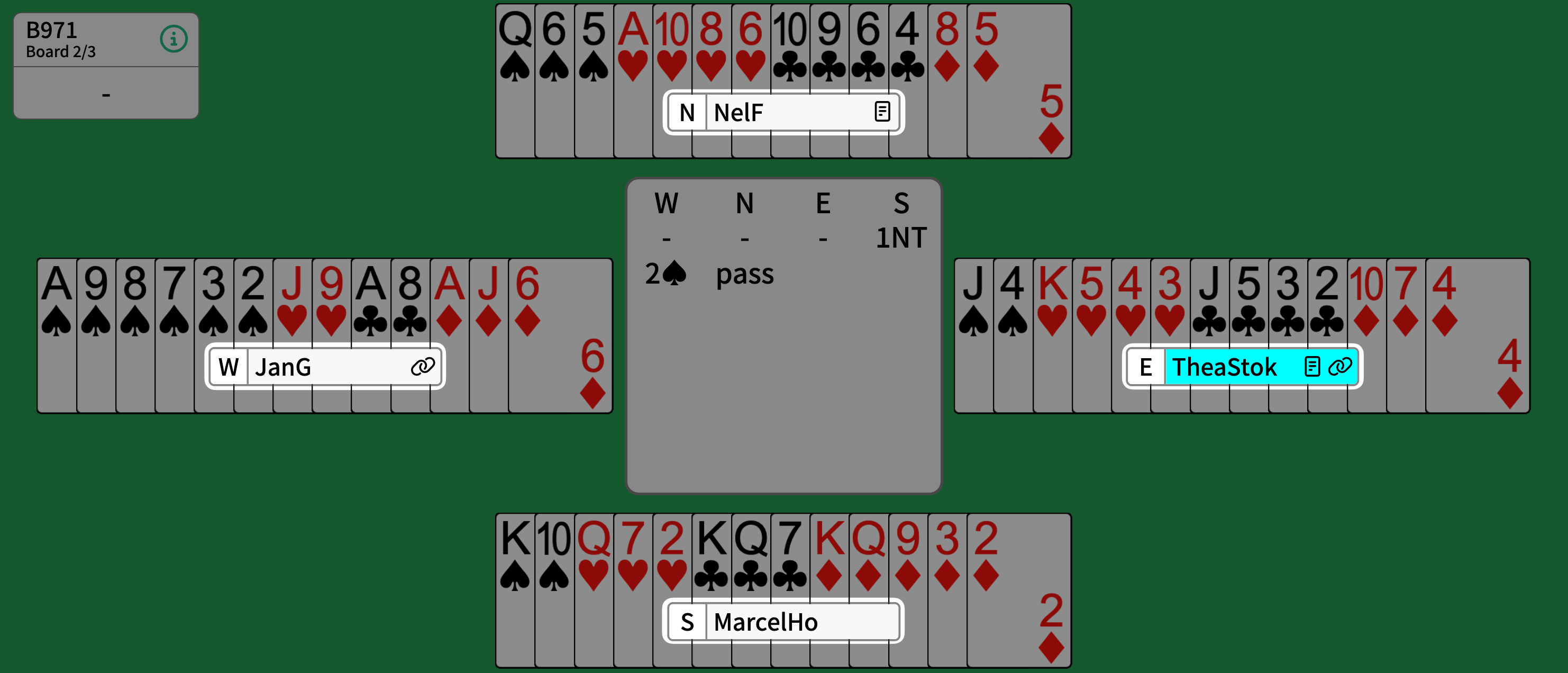
- Regular pairs are shown with a chain icon 🔗 after the usernames. Matched pairs do not have this icon.
- The card icon shows whose convention card is being used. Click the name to view the card.
Further exploration
You now know how to log in, practise with Sabi, choose a convention card, send chat messages, and participate in tournaments. There's much more to explore, such as teams matches, casual bridge, and video tables. Take your time to browse the menus, try different activities, and discover how versatile StepBridge is!